New! Automatic table configuration


Skip the setup
If you've ever connected a database to an admin panel and then spent the next hour renaming things like "created_at" to "Created At", convincing ratings to render as a progress bar instead of a naked "4.9", and getting "writer_id" to show a writer's actual name — you know the pain.
We cut it short.
Our team is always looking for ways to improve your experience, and that doesn’t mean just a better-looking interface and faster performance. It also includes ways to completely streamline entire processes.
So we decided to start at the very first stage — importing the table.
🛠️ How it works
Open any unconfigured table in Rocketadmin, and you’ll see a new banner sitting at the top of your Tables view.

Just click on “Configure all”, and you’re done. That’s it. One click.
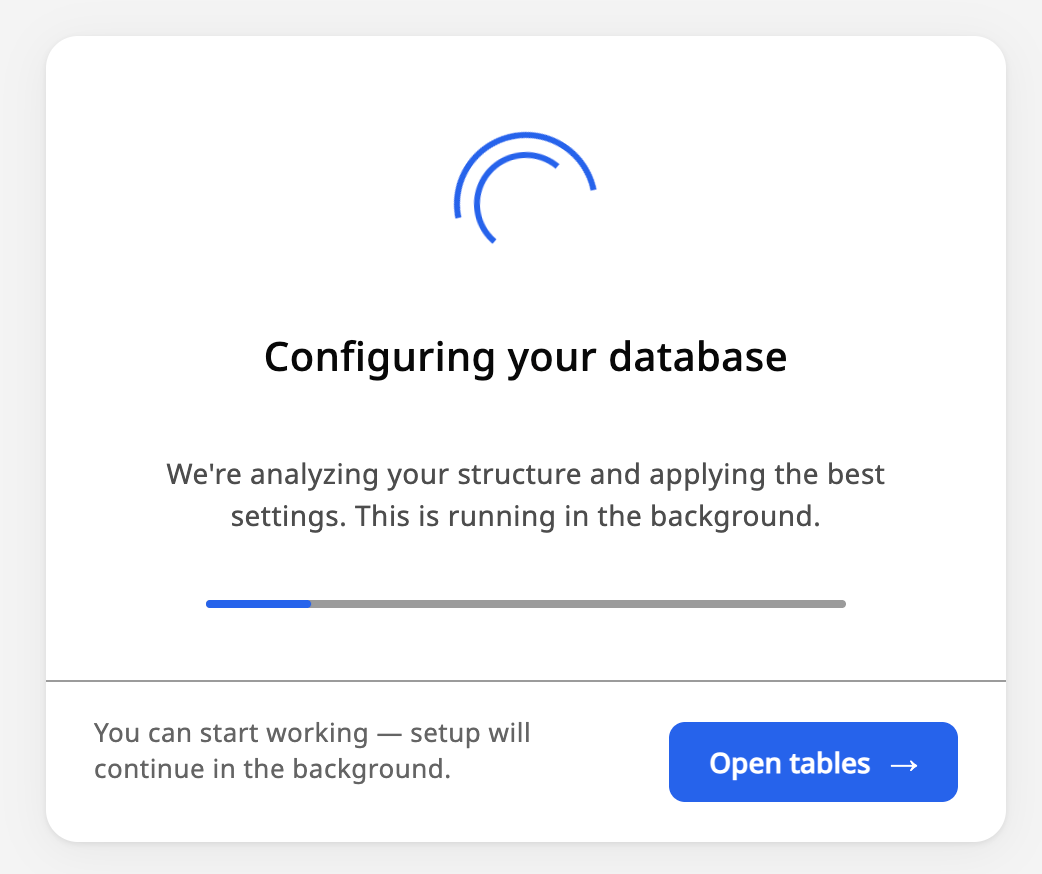
Rocketadmin’s AI then analyzes your tables and adds UI Widgets and changes settings and ordering for you, choosing the most relevant options for each.
☝️ While Rocketadmin’s AI can change visualizations and order things around, it doesn’t remove or delete anything. Your data and your columns and rows won’t go anywhere.
💡 Here’s an example
Here’s a table for a book club. We have King’s “Pet Sematary” and Fitzgerald’s “The Great Gatsby.”
In the first example, we have six columns that we’ve shown here.
- ID
- Name
- Year
- Created at
- Updated at
- Writer ID
If the naming was something akin to “created_at” or “w_id,” our AI can still figure it out.
In this case, however, we already have a set, human-readable naming convention.

But we can take it a step further.
After clicking on “Configure all”, this is the result.

The AI has intuited that the “Name” column refers to the names of books, and has changed the column title accordingly.
Similar with “Publication Year”. “Created at” and “Updated at” have also been formatted to proper case. “Writer ID” has been shortened to just “Writer”, which makes sense for a human-forward table.
More interestingly, it has visualized the “Rating” column. That’s something that already existed in the table, but was hidden, and the cell just showed a simple number: “4.9”.
However, on its own, the AI has not just added the “Range” UI Widget to display the value (out of 5) as a bar, but it has also decided to show it.
In other words, the AI has cleaned up the definitions in a way that makes them clearer, properly formatted, and more context-sensitive. But it has also decided that the “Rating” column is a valuable enough piece of information that it should be shown alongside the rest.
So, just to reiterate. With just one click:
- Columns got humanized
- Types got matched to widgets
- A hidden column got surfaced
That’s just one use case. The AI can adapt to a wide range of situations. As long as there’s enough information to go off of, it can read, understand, and update to a very high degree of success.
🚀 In summation
There’s a lot more to talk about here, but this is the really important thing:
- One click
- Context-sensitive
- Tweakable after changes
Database setup is by far the most important and also the most boring part of every project.
You always want IDs to be readonly. You always want timestamps formatted. You usually want ratings as bars and titles as prominent fields. Doing all of that by hand was always, frankly, a waste of everyone's time.
Now Rocketadmin handles the obvious stuff automatically, and you spend your time on the parts that actually need your attention and expertise.
Open a project, hit "Configure all", and go have a coffee. Actually, no. You won’t even have time to get coffee.