New! Edit your database schema by describing it

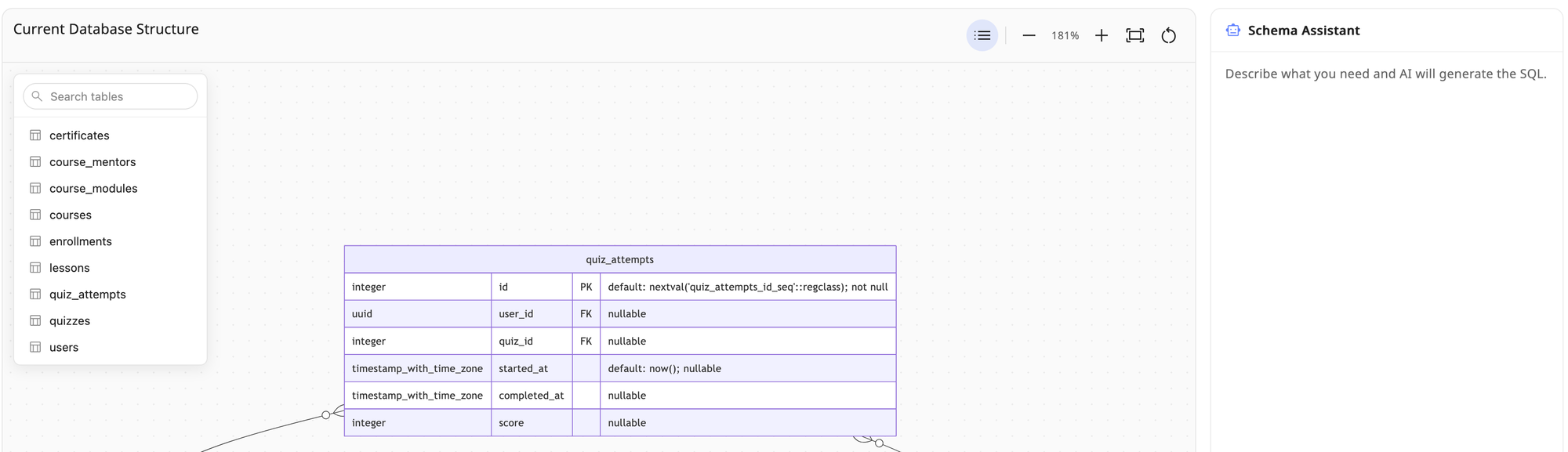
Changing structures doesn’t need to be tough, but it often is.
A new department could be added — that’s an entirely new table.
Or a project could pivot — that’s a new schema to an existing database.
So we built AI schema editing.
Describe the change you want in English (or any other language), watch it appear as a diagram, and apply it. No hand-written SQL required.
How it works
Each connection now has an Edit schema button. It opens a full-screen editor: a live diagram of your database on one side — tables as boxes, links between them as lines — and a chat assistant on the other.
From there, just tell our AI what you need.
- "Add a phone column to customers."
- "Create an orders table linked to customers."
- "Rename signup_date to created_at."
It reads your existing schema, works out the changes, and generates the correct SQL for your database.
Here’s an example. We want to generate a schema for a database for a higher education institution.
We can use a simple, native-language prompt to generate an entirely new table.
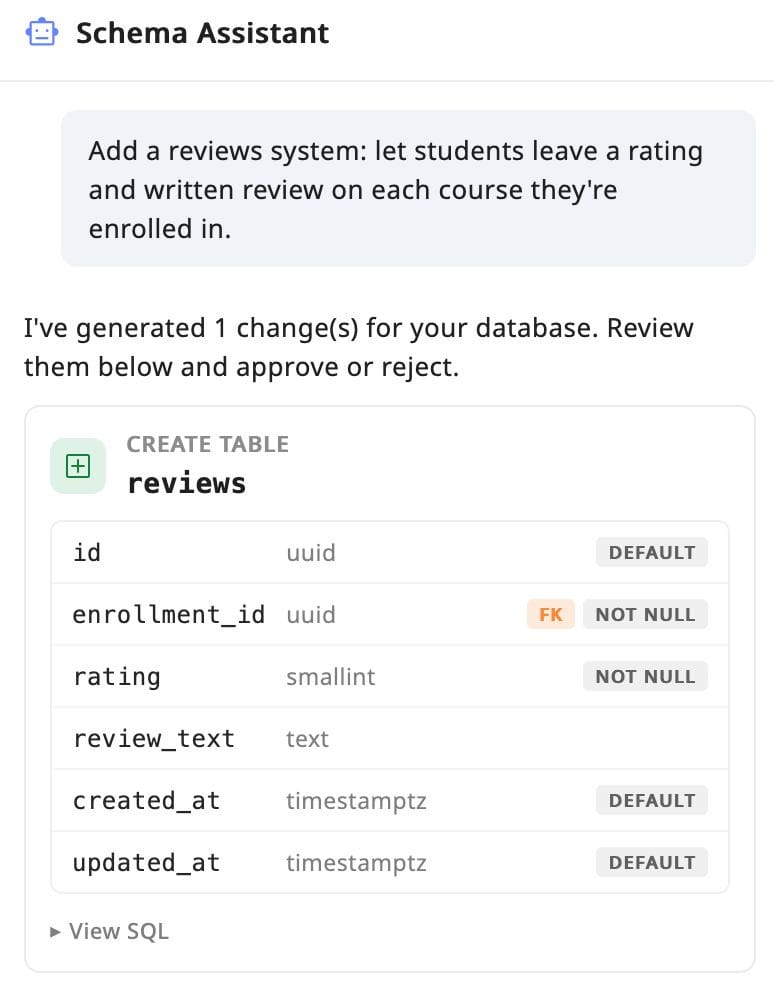
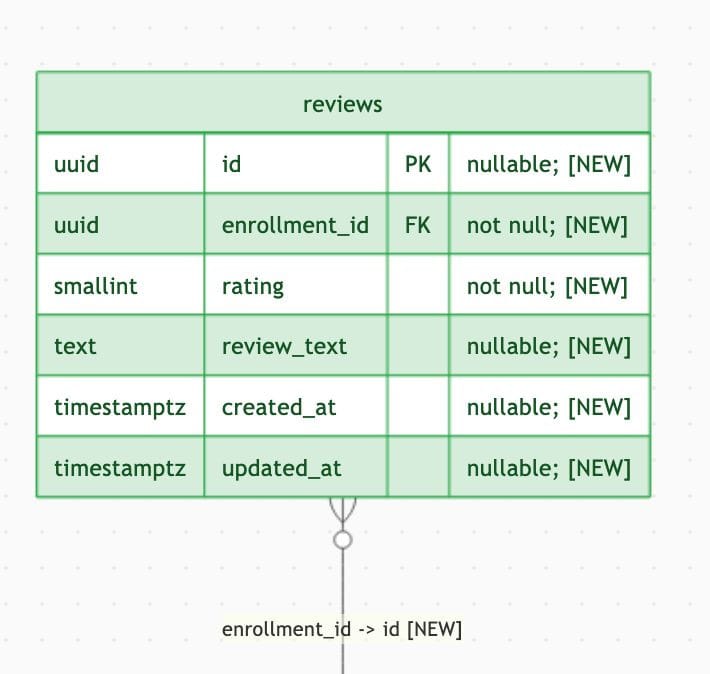
The generated table appears in your schema in green.
Once you click Apply, the table fully becomes part of your schema.
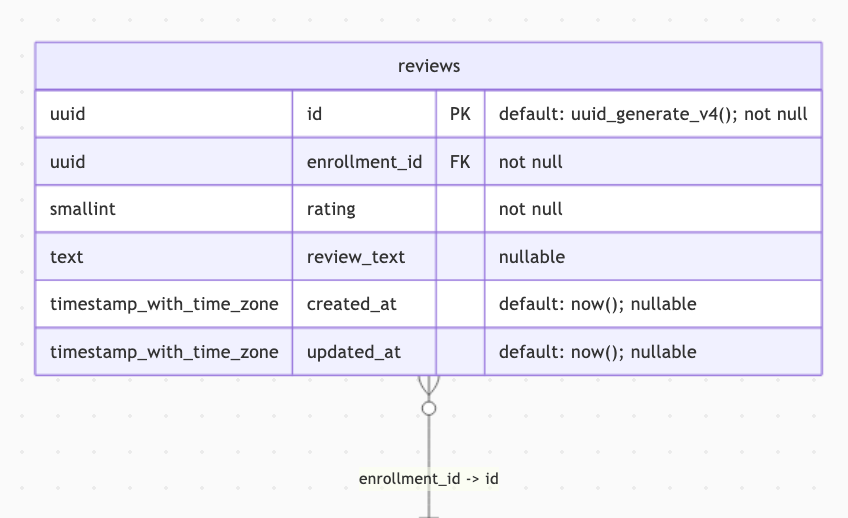
Want to edit it further? Just ask the AI for help again!
Plenty flexible
Empty database? Massive changes required? Not sure where to go?
Open your connections list, find Edit schema, and tell it what your database is missing.